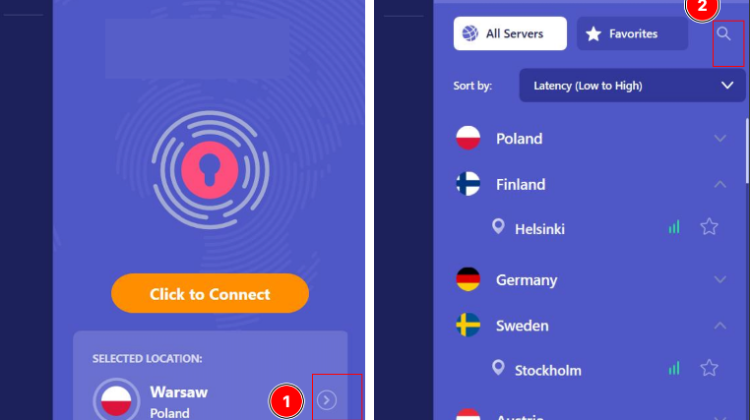
Your VPN is running. The little green icon confirms you’re protected. You’re browsing safely—or so you think.
Then you check your privacy audit and your stomach drops. Twenty-three different websites captured your real location. Not your VPN’s location. YOUR actual location.
All because of one browser setting you probably never knew existed.
This isn’t a hypothetical scenario. This happens to thousands of PC users every single day, and most never find out. The culprit? A protocol called WebRTC that quietly bypasses your VPN protection while you browse.
Here’s what you need to know to actually protect yourself.
The Hidden Threat That VPNs Can’t Stop
WebRTC (Web Real-Time Communication) sounds harmless. Your browser uses it for video calls and peer-to-peer connections. The problem? To make these connections work, your browser needs to find your device’s network address.
To accomplish this, WebRTC sends requests to STUN (Session Traversal Utilities for NAT) and TURN servers. These requests happen at the operating system level—completely bypassing the encrypted tunnel your VPN creates.
Think of it this way: Your VPN builds a secure tunnel for your traffic. But WebRTC opens a side door that reveals your real IP address to anyone who knows how to look.
Tracking scripts embedded in websites exploit this constantly. They don’t need your permission. They don’t trigger any warnings. They just silently harvest your real location while your VPN icon cheerfully displays “Connected.”
Why 23 Websites in 12 Hours Makes Perfect Sense
That number isn’t unusual. Here’s the math:
- Most websites contain tracking scripts from third-party advertisers
- Each tracker can execute a WebRTC IP discovery request
- Every page load creates a new exposure opportunity
- You visit more sites than you realize (news articles, shopping, social media)
If you browse even moderately during a work day, hitting 23 unique sites with tracking capabilities is typical. Each exposure lets data brokers, advertisers, and potentially malicious actors pinpoint your location despite your VPN.
Why Most Free VPNs Make the Problem Worse
Operating a VPN costs serious money. Global servers, bandwidth, maintenance, security audits—these aren’t cheap.
When a VPN service charges nothing, you have to ask: How do they pay for all this?
The uncomfortable truth: Many free VPNs fund their operations by tracking and selling your data. The very thing you’re trying to prevent.
Common monetization tactics include:
- Logging your browsing history and selling it to data brokers
- Injecting advertisements into your web pages
- Collecting connection metadata (timing, data volume, approximate location)
- Imposing restrictive data caps to push paid upgrades
- Operating under jurisdictions with mandatory data retention laws
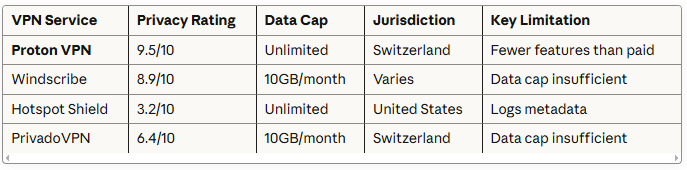
Hotspot Shield Basic demonstrates this perfectly. Despite being the fastest free VPN tested, it operates in the United States (a Five Eyes surveillance alliance member) and explicitly collects connection metadata including approximate location. Privacy rating? A dismal 3.2 out of 10.
Speed means nothing if your data is being collected and sold.
The Only Free VPN That Actually Protects Your Privacy
After testing dozens of options against strict privacy criteria, one service stands alone: Proton VPN.
Why Proton VPN Earns a 9.5/10 Privacy Rating
Swiss Legal Protection Proton VPN operates under Swiss jurisdiction, which provides some of the world’s strongest privacy laws. The company cannot be legally compelled to retain user data or hand it over to surveillance agencies.
Independently Audited No-Logs Policy External security experts have verified Proton VPN’s no-logs claims. The service doesn’t monitor or store:
- Your IP address
- Session lengths
- Browsing history
- Connection timestamps
Unlimited Data on Free Tier Most free VPNs cap you at 500MB to 10GB monthly. Proton VPN? Unlimited. Zero restrictions. This removes the incentive to compromise your privacy by switching to data-harvesting alternatives.
Built-In DNS Leak Protection All website address lookups route through Proton VPN’s encrypted tunnel using their own DNS servers. Your Internet Service Provider never sees which sites you visit.
10-Country Server Network The free tier provides access to servers in 10 countries with automatic connection to the fastest available option.
Proton VPN can offer this level of service because their premium tier subsidizes the free version. They’re privacy advocates first, VPN operators second.
Free VPN Alternatives: The Compromise You Make
If Proton VPN doesn’t meet your specific needs, here’s what else exists—and what you sacrifice.
Windscribe: High Privacy, Limited Data
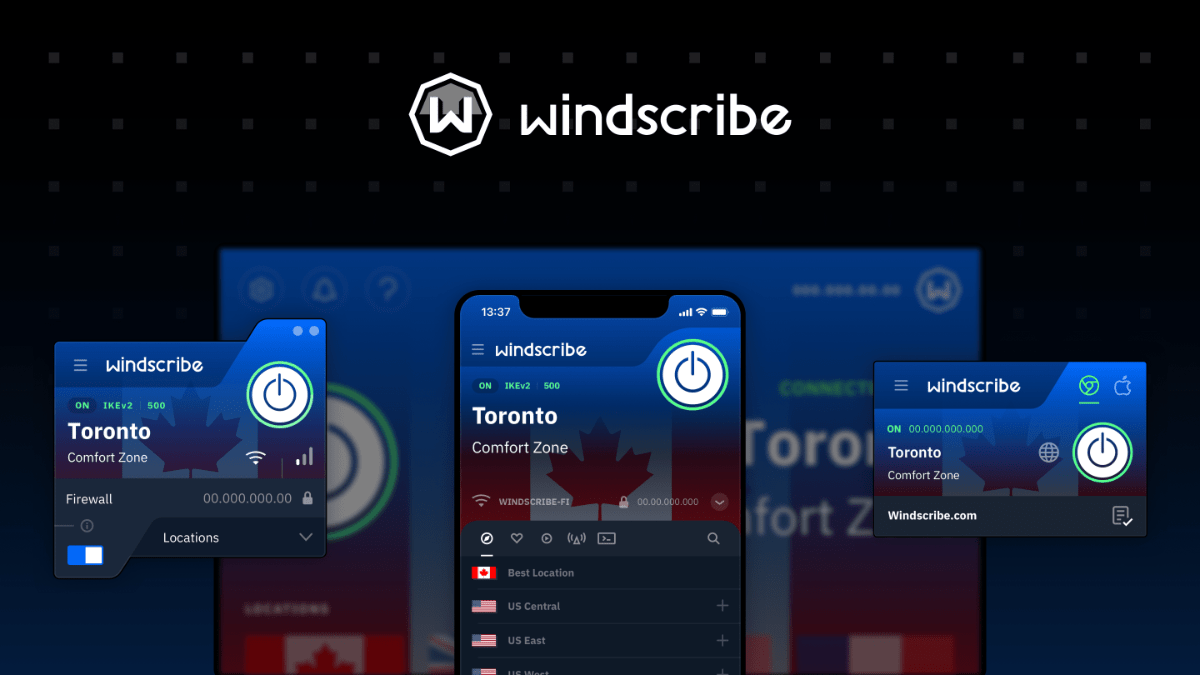
Windscribe VPN [click to view…]
Privacy Rating: 8.9/10 Data Cap: 10GB monthly Server Locations: 10 countries
Windscribe passed independent WebRTC leak tests and includes a proprietary kill switch (they call it a firewall). The privacy credentials are solid.
The problem? 10GB disappears fast on PC. Large downloads, software updates, or streaming blow through that cap quickly. You’ll either supplement with another VPN or risk running unprotected.
PrivadoVPN: Swiss Privacy, Same Data Limits

Privacy Rating: 6.4/10 Data Cap: 10GB monthly Server Locations: 11 countries (14 cities)
Another Swiss-based option with respectable privacy practices. The 10GB cap remains the dealbreaker for serious PC usage.
Hotspot Shield Basic: Speed Without Security
Privacy Rating: 3.2/10 Data Cap: Unlimited Server Locations: 1 (US only)
The fastest free VPN tested—and the least private. Connection metadata collection, US jurisdiction, and a single server location make this suitable only for basic browsing where privacy isn’t a concern.
Comparison: Free PC VPNs at a Glance
How to Actually Fix the WebRTC Leak
Your VPN handles network encryption. Your browser handles the WebRTC vulnerability. You need both protected.
Step 1: Enable Your VPN’s Kill Switch
A kill switch disconnects your internet if the VPN connection drops. Without this, your real IP address gets exposed during reconnection.
To enable:
- Open your VPN settings
- Locate “Kill Switch” or “Network Lock”
- Toggle to “On”
- Test by manually disconnecting the VPN—your internet should go offline
Step 2: Disable WebRTC in Your Browser
Different browsers require different approaches.
For Google Chrome Users
Chrome doesn’t offer native WebRTC controls. You need extensions.
Option 1: WebRTC Network Limiter (Official Google Extension)
- Visit the Chrome Web Store
- Search “WebRTC Network Limiter”
- Click “Add to Chrome”
- The extension limits IP exposure while preserving some P2P functionality
Option 2: uBlock Origin (Comprehensive Blocking)
- Install uBlock Origin from Chrome Web Store
- Click the extension icon
- Open the dashboard
- Navigate to Settings > Privacy
- Check “Prevent WebRTC from leaking local IP addresses”
For Mozilla Firefox Users
Firefox offers the cleanest, most complete solution.
Steps:
- Type
about:configin the address bar - Click “Accept the Risk and Continue”
- Search for
media.peerconnection.enabled - Double-click to set value to
false - Restart Firefox
This completely disables WebRTC. No extensions needed.
For Microsoft Edge Users
Edge includes a built-in anonymization option.
Steps:
- Type
edge://flagsin the address bar - Search for “Anonymize local IPs exposed by WebRTC”
- Change setting to “Enabled”
- Click “Restart” when prompted
Step 3: Disable Geolocation Services
Browsers can also access GPS and Wi-Fi-based location data through other APIs.
For All Browsers:
- Open browser Settings
- Navigate to Privacy and Security
- Find “Location” permissions
- Set to “Don’t allow sites to access location”
For Windows:
- Settings > Privacy > Location
- Toggle “Location service” to Off
For macOS:
- System Preferences > Security & Privacy > Privacy
- Select “Location Services”
- Uncheck your browser
Step 4: Test Your Protection
After implementing these fixes, verification is critical.
Testing tools:
- ipleak.net
- BrowserLeaks.com
What to check:
- Your public IP should match your VPN server location
- WebRTC section should show no local IP addresses
- DNS requests should route through VPN servers
- No location data should appear
A properly configured setup displays only VPN-assigned addresses. Any appearance of your real IP means something needs adjustment.
Additional Security Layers Worth Considering
VPN Router for Whole-Home Protection
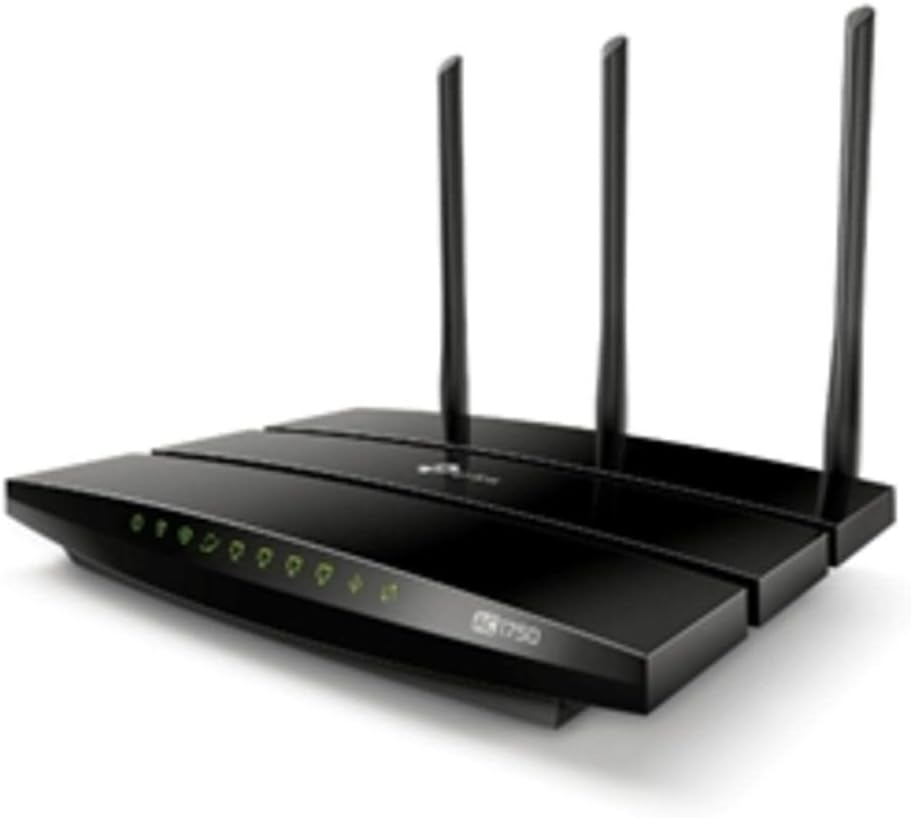
TP-Link Archer AC1750 WiFi Router [click to view…]
Instead of securing each device individually, a VPN router encrypts all traffic at the network level.
TP-Link AC1750 Smart WiFi Router supports OpenVPN and works with Proton VPN. Every device connected to your network gets automatic VPN protection.
Privacy Screen Protector
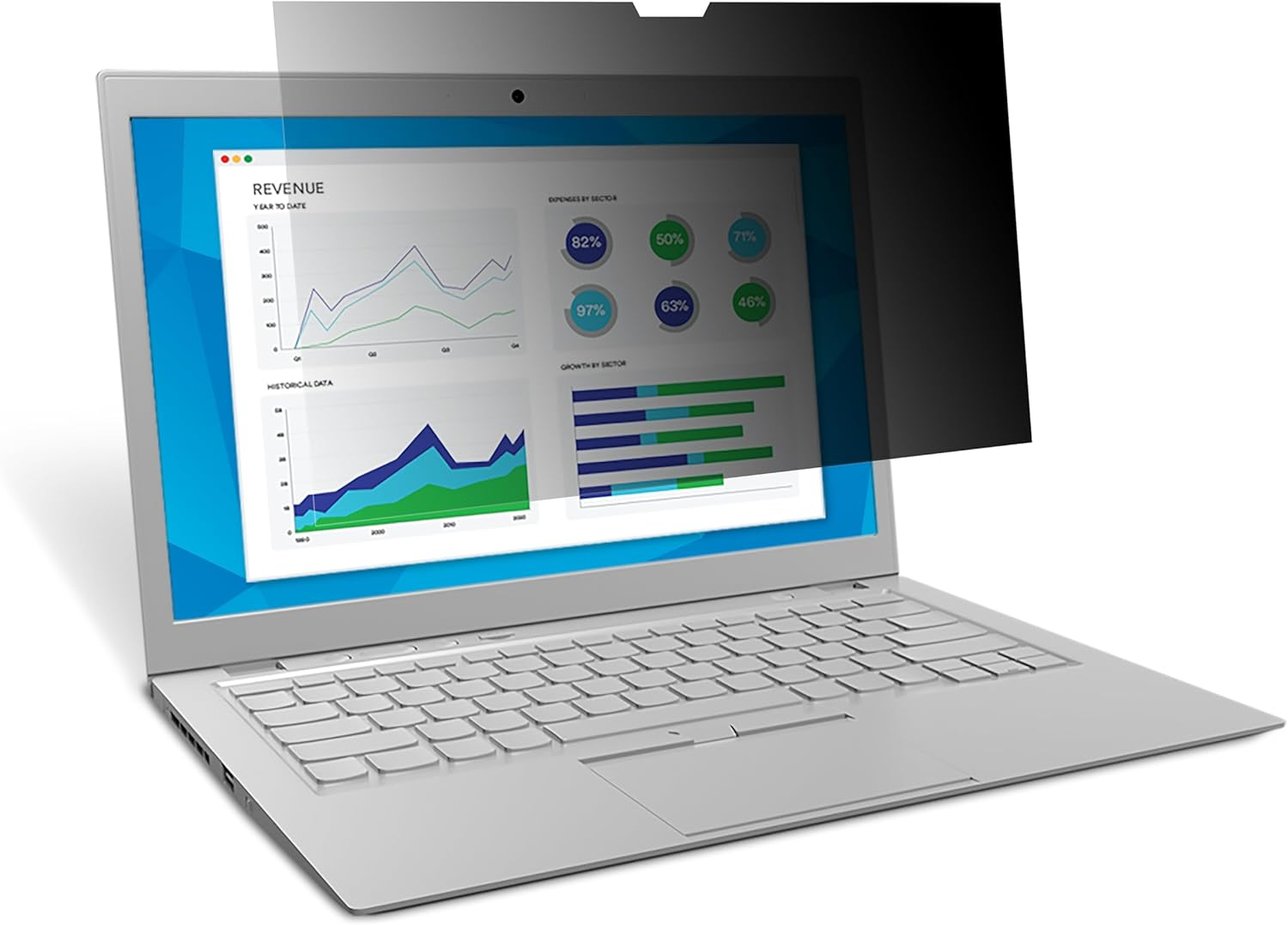
3M Privacy Filter [click to view…]
Physical privacy matters too. Shoulder surfing in coffee shops or airports exposes sensitive information.
3M Privacy Filter for Laptops blocks side viewing angles while maintaining straight-on clarity. Available for most screen sizes.
Hardware Security Key

YubiKey Security Key [click to view…]
Password managers help, but hardware authentication provides stronger account protection.
Yubico YubiKey 5 NFC works with hundreds of services including Google, Microsoft, and most VPN providers for two-factor authentication.
When Free Isn’t Enough
Proton VPN’s free tier solves the privacy problem for most PC users. But certain use cases require premium features:
You need a paid VPN if you:
- Stream region-locked content regularly
- Require guaranteed speeds for large file transfers
- Need dedicated IP addresses for specific services
- Want access to specialized servers (P2P, Tor)
- Run a business where privacy breaches have legal implications
The premium tier removes the economic pressure that causes other “free” services to compromise privacy. You become the customer instead of the product.
Your Two-Layer Defense Checklist
Protection requires both components working together:
VPN Layer:
- [ ] Install Proton VPN (or verified alternative)
- [ ] Enable kill switch
- [ ] Confirm DNS leak protection is active
- [ ] Connect before browsing
Browser Layer:
- [ ] Disable WebRTC using method for your browser
- [ ] Block geolocation API access
- [ ] Install privacy-focused extensions if needed
- [ ] Clear existing cookies and site data
Testing:
- [ ] Visit ipleak.net to verify no real IP appears
- [ ] Check WebRTC section shows no local addresses
- [ ] Confirm DNS requests route through VPN
- [ ] Repeat test monthly or after browser updates
The Bottom Line on VPN Privacy
That “crazy” browser setting isn’t a bug—it’s an architectural feature that tracking companies exploit. WebRTC needs your real IP address to function, so it bypasses VPN encryption by design.
Your VPN can’t fix what happens inside your browser.
The solution requires defense in depth: A privacy-first VPN like Proton VPN protects your network traffic, while browser configuration prevents WebRTC from exposing your real location. Skip either layer and you’re vulnerable.
Most PC users browse with a false sense of security. The VPN icon shows “connected” while tracking scripts silently harvest location data through WebRTC. Now you know how to close that gap.
Test your current setup at ipleak.net right now. You might be surprised what’s leaking.
Frequently Asked Questions
Can I completely disable WebRTC without breaking video calls?
Yes. Firefox’s about:config method completely disables the protocol. For video calls on platforms like Zoom or Google Meet, use their dedicated apps instead of browser-based versions. Most video conferencing apps don’t rely on browser WebRTC.
Will blocking WebRTC slow down my internet?
No. WebRTC is used for peer-to-peer connections, not standard web browsing. Disabling it has zero impact on loading speeds, streaming, or downloads through normal HTTPS connections.
How often should I test for leaks?
Test monthly and after any browser updates. Browsers occasionally reset privacy settings during major updates. Bookmark ipleak.net and make it part of your security routine.
Is Proton VPN’s free tier really unlimited forever?
Yes. Proton VPN has maintained unlimited data on their free tier since launch. The company’s business model relies on premium subscriptions, not bait-and-switch tactics. Their free tier serves as a legitimate privacy tool and marketing for paid features.
What happens if I use a free VPN that logs data?
Your browsing history, connection times, and online activities get sold to data brokers, advertisers, or worse. These aggregated profiles can reveal sensitive information about your health, finances, politics, and personal life. Privacy violations are permanent—once your data is sold, you can’t take it back.
Can my employer or school see through my VPN?
VPNs encrypt your traffic, but network administrators can still see that you’re using a VPN. Some networks block VPN connections entirely. Proton VPN offers Stealth protocol on paid tiers to disguise VPN traffic, but the free tier may be detectable and blockable.
Does a VPN protect me on public WiFi?
Yes—this is one of VPN’s core benefits. Public networks are notoriously insecure, allowing attackers to intercept unencrypted data. A VPN encrypts all traffic between your device and the VPN server, making public WiFi significantly safer. Just ensure your kill switch is enabled in case the connection drops.
Other Popular Posts:
 Motion-Activated Toilet Night Light Stops Smelly Bathroom “Floor Tinkling” Without Ruining Your Sleep
 TikTok Remote Control Ring Lets You “Scroll” & “Heart” Videos Without Touching Your Phone
 They Managed To Create This One Dollar Bill Art Without Getting Caught And Put To Jail
 10 Cool Windows Ninja Cat Wallpaper Designs That You Can’t Live Without
 10 Amazing Photographs Taken Without Photoshop To Your Disbelief
 Lady Plays Home Depot Saw Like A Violin Without Getting Cut In Half
 Best Air Popcorn Popper Machine: Get Movie Theater Quality Without Leaving Home

 Google Released 750 Free Icons Into The Wild – Here’s How You Can Snap Them Up